







BIZZ WIZZ MENU
BIZZ WIZZ MENU
MAIN SCREEN
Bizz Wizz : CDSetup , Setup , Disclaimer , Main Menu , Ledger , Phone Book , Invoice Book , Stock Book , Order Book , Creditors , Point of Sale , Business Name , Diary , Wages , Document Manager , Email Form ,Unlock , Backup , Memo ,
See Also : Menu , Purchase, Unlock , Backup , Load Old Version Data , Networking
 THE
VIDEOS ARE FROM AN OLDER VERSION BUT WILL STILL GIVE YOU THE BASICS. THE
VIDEOS ARE FROM AN OLDER VERSION BUT WILL STILL GIVE YOU THE BASICS. |
How to set up more Companies. (Down loads from web) |
|
|
How to Network Bizz Wizz. (Down loads from web) |
|
|
Using the Main Menu (Down loads from web) |
|
|
How to Unlock Bizz Wizz (Down loads from web) |
|
|
How to set up Ledger. (Down loads from web) |
NOTE:
By moving the mouse over the buttons, the help box at the bottom of that screen will give you a brief description of the function of that button.You Need To Know:
The Main Menu or Tool Bar of Bizz Wizz Must run all the times for Alarms and Auto
Backup to work.
If the Menu gets in the way just run it in Tool Bar Mode by minimizing it and
within 30 seconds it will close up to a thin Line at the top of the Screen.
To bring the Tool Bar back just move the mouse over the line. For the full
menu just Maximize the Tool Bar by clicking on the square at the top of the
Toolbar .
On the programs menu you will notice a button for POS and another for WAGES.
Both these modules may not operate after the 30 day trial has elapsed.
Both these modules are add ons and must be paid for separately to be registered
to use them.
BW Main Menu:
Moving the mouse over the Button Tabs at the top of the menu will open a sub
menu of buttons, just select the button for the function you wish to run.
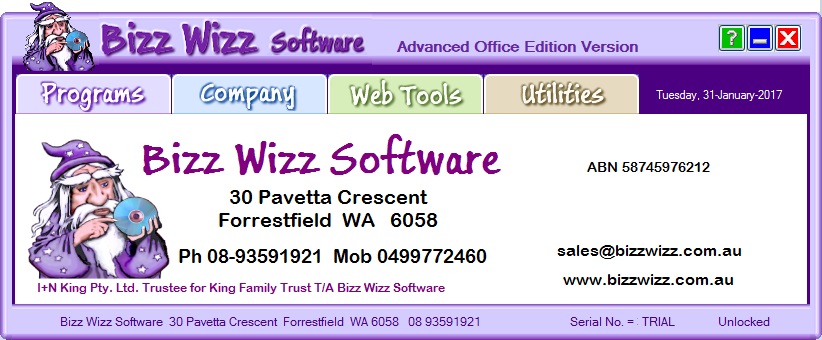
The Letter Head You see is setup in the Designer and will change for each company you select. Click [Utilities] Tab then [Designer] to setup your Letter Head
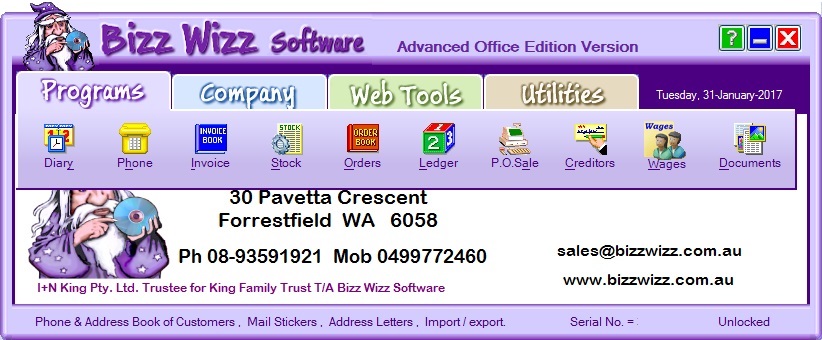
The Main Menu in Tool Bar mode

To run the Menu in Tool Bar Mode just Minimize the Main Menu.
The Tool Bar will within 30 seconds, close up to a thin Line at the top of the
Screen.
To bring the Tool Bar back just move the mouse over the line at the top of the
Screen.
On touch screens the toolbar can be set not to close to a thin line with option
4 on company tab.
To MOVE the Tool Bar left or right on the top of the screen, Click on the
top 2mm of the bar and hold down the mouse button and move mouse left or right
and the bar will move.
The Company Tab
The [Networking and Company
Wizard] button is only to add new Companies and set Data Folders Paths. SEE How
to Setup. OR view the
Video Clip (Down loads from web)
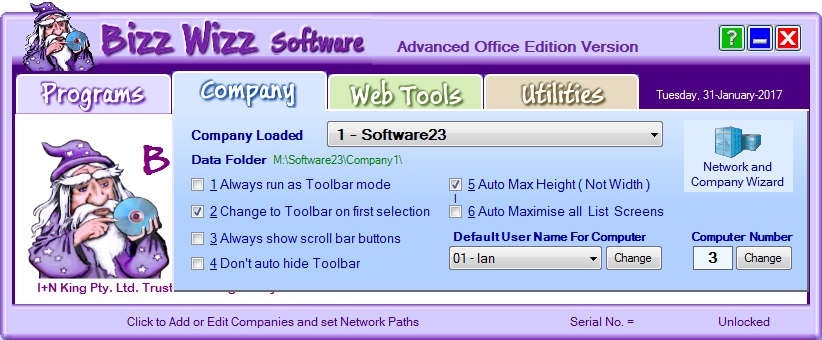
How to Select a Company. Its as easy as clicking on the Company Loaded
dropdown box .
To Access another company move your mouse over the drop down list arrow to select which company you want to work in.
Then click on that company, move the mouse away and that program will then be
loaded and ready for you to work in.
Options 1 and 2 they are both for automatically going to Tool Bar mode if needed .(Tick
2 is the best so you see the menu when you start up and it goes to the tool bar
after selecting an option.)
Option 3 Always show scroll bar buttons, when viewing lists in all
modules of BW, useful when
using a touch screen or jumping to top or bottom of the list screens.
Option 4 Don't hide tool bar buttons, when ticked the the tool bar will
not auto hide to a line at the top of the page.
Option 5 Auto max Height (not width) .. This option will use the
full height of the screen when a List Screen is shown, in all modules of Bizz
Wizz .
Option 6 Auto maximise all List Screens.. This option will use the Full
screen height and width by auto maximising List Screens, in all modules of
Bizz Wizz .
Default user name for Computer is used to set the person
who uses this computer so when sending Memo Mail it goes to the right user. It
is also used when tagging who did what in the program.
The Computer Number must be a different number on each computer on
a network. This Number is used to keep the setup for that computer so
should only be changed at setup time. Note the number is for the computer and
will not changed when the Company changes.
Each computer on a network must NOT have the same computer number.
WEB TAB

Memo Mail Button is to send
mail /memos on your internal network EG. ( Mr. Smith rang call back ASAP)
BW News, BW Home and Updates Buttons will bring up the Bizz Wizz
web site and go to the page selected. Updates let you check and get the latest
update for you version.
Email Out Lets you email anyone as long as the email setup setting
are set ok.
Email BW let you send an email only to Bizz Wizz Note: You email setting
do not need to be setup as BW uses a preset gateway.
BW Log In Will bring up a Team Viewer log in box so Bizz Wizz
support can see what you are doing and help you fix it. Just ring us so we can
connect.
The Google Button loads the Google Search.
UTILITIES
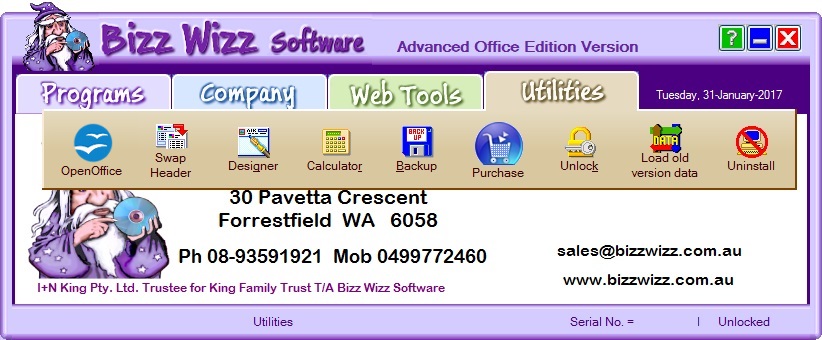
Open Office is a third party free word processor and more . It can be
loaded from the website or the CD.
Swap Header button will change the letter head to the next one for the
company your working in. Each company can have 4 letter heads.
If a letter head is selected and it is not setup as yet it will copy the current
letter head to that selection.
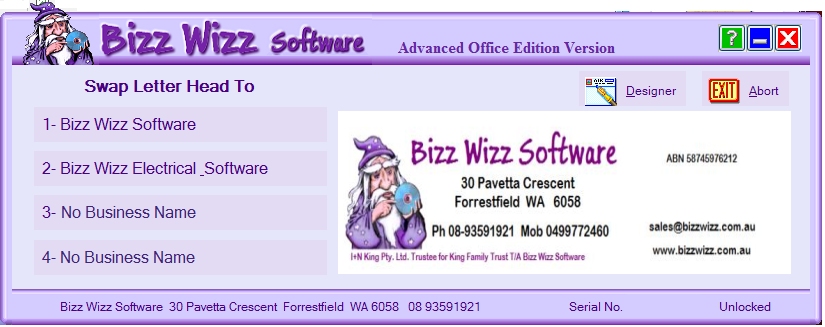
Designer button is used to set up your letter
heads.
Calculator button will bring up the windows calculator.
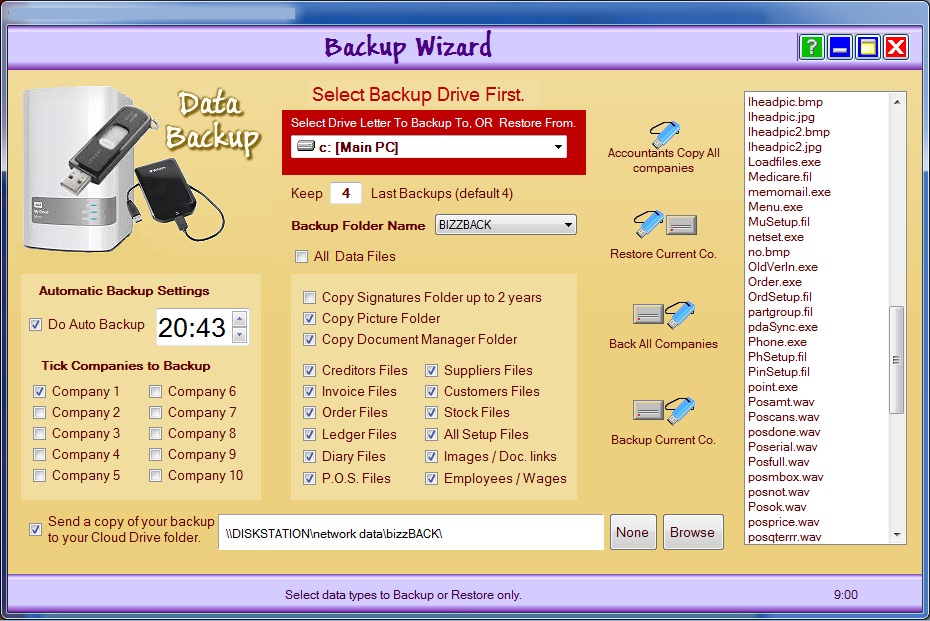
Backup button lets you backup Bizz Wizz and
Restore along with accounts copies.
Purchase button will bring up the BW order form for ordering updates or
full copies and hardware.
Unlock button Let you enter then serial number
and the unlock code supplied by Bizz Wizz.
Load old version data button Loads data from older versions of Bizz Wizz
Uninstall button Tells you how to uninstall Bizz Wizz
See Also : Menu , Purchase, Unlock , Backup , Load Old Version Data , Networking