Troubleshooting

Problems with version 14
In updating old data to the new version 14,  If a file does not update right it is because it is corrupted.
it may work ok on the old software but part of the file is not compatible with the new file data format.
Ring BW for the best thing to do about your data. 08 93490255


How To Run Version 12 in Windows Vista
Yes you can run bizzwizz 12 in Vista NOW ... Click the above link to see how.


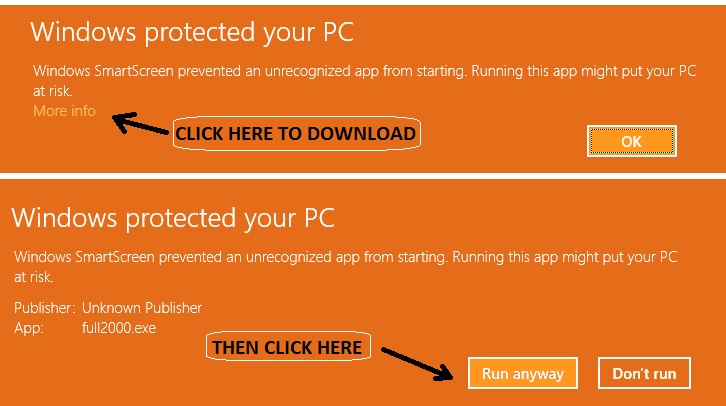
If you get this error box ( Yes windows has another bug )
 Version 12


TO FIX    Download this fix  16xpfix.exe  from BW and 
 it will be installed into your "Startup" icon group 

OR

If you get this error box

To fix this error
Click on the windows Start button
Click on programs
Find startup then Right click startup
When the pop up menu appears select open
You will now see all the program that start when windows starts
Delete any old version  Bizz Wizz icons,
There should be only 1 Bizzwizz program icon
NOTE the 16bit fix icon is ok to keep as well.


Known printing problems (spyware doctor stops printing)
 
Version 12

If Spyware Doctor is installed on your computer, you will not be able to use the print function. In order to print you will have to uninstall Spyware Doctor. To do this, go to:
  1. My computer
  2. Control Panel
  3. Add or Remove Programs
  4. Search for Spyware Doctor in the list
  5. Click the uninstall button
If your printer still does not print, Please call us for other solutions that are available

Problems printing over network

When using the network to print and you find that you are not able to print, try this:
  1. On the slave machine, go to add printer
  2. From the options provided, select add network printer
  3. Choose browse for printer and click next
  4. From the list that comes up do not choose any of the printers, instead look for the server computer from the list
  5. Double click on the server computer icon, which will bring up a list of printers that are connected to the server computer
  6. Select your printer from the list of printers that has come up under the server computer list

If Your Printer will still not Print .. Please give us a ring for more help


Problems   Not printing  only in BizzWizz with USB in Xp or Vista
 Version 12

First check you do not have the spyware bug as above!
1. Bring up your printers in windows.
2. Right click on the printer and then click on properties .
3. Select the ports tab at the top.
4. Turn on [Enable printer pooling]
5.  In the list of ports keep the port that is selected and select LPT1 as well .
6.  Click [Apply] then [Ok]
7. Restart the computer. 
If Your Printer will still not Print .. Undo Change.. Please give us a ring for more help


Emailing Problems   Version 12

When you get a FROM box instead of a TO box. Press the Forward button on screen,
Then press the control [ctrl] key plus [V] key on the keyboard.
This will paste the email address back in.

Deposit list full error

When paying an invoice through to the ledger and you get the above error message, the window that comes up which asks you for the check number, bank, amount, etc... also has an option for sending to the deposit list. Change the Y to an N to not send to the deposit list. The deposit list is only used when taking your deposits to the bank. It does not stop your information going into the ledger. You can also press ok and ignore this message if you wish.

Toshiba and Other Laptops freezing   Version 12

If this is the case try this!
Click the START button. Select RUN. Type in the box MSCONFIG and press OK
Select the STARTUP tab and TURN OFF a program called ' LAUNCHER ' and press OK
Then restart the computer.
If you can not find LAUNCHER then try turning off some others in the list????


Price book not returning to invoicing or orders (something running in background error)
 Version 12

If this is the case try this!
Click the START button. Select RUN. Type in the box MSCONFIG and press OK
Select the STARTUP tab and TURN OFF a program called ' CTFMON.EXE ' and press OK
Then restart the computer.
If you can not find ' CTFMON.EXE ' then try turning off some others in the list????


Network mapping problems   Version 12

If the ledger program will not run on a network machine:
When installing a network copy, do not share the Bizz Wizz directory. Only share the directory before the Bizz Wizz directory. If there is no directory before share the root drive.

Date (American date)

Move to America :-)  or
  1. Go to your Windows control panel,
  2. Go to system settings,
  3. Go to regional and language options
  4. Choose English (Australian)

Deleting the last Invoice   Version 12/14

In order to delete the last invoice that you made you have to:
Go to setup in invoicing - then click on the delete last invoice button.

Deleting a whole book   Version 12

When deleting a Book you have to delete the three files that were created when you created your book. The files will look something like this: For example if you created a book called A, then the following files will be created - In order to delete book A you will have to delete the files mentioned above. If you have a file named B you would look for the following files: and delete them. When you get to the last Book you will have to go through the setup/delete option to delete the Book.

Re-using Invoices  Version 12

  1. Bring up the invoice that you want to reuse
  2. Click on edit top button
  3. Then click on the replace button; which will takes you back to your customer list.
  4. Highlight the file that you want to invoice
  5. Click on the select button then click on the save and exit button.
  6. This will then change the top of the invoice for the correct customer. You then need to make sure that you have deleted any information on the body of the invoice and then re-enter the relevant information.

End of year procedure

The information can be found here Version 12
The information can be found here Version 14
 

How to do a bank Reconciliation  

YEAR START:

You must first enter your year start figure for July 1 from your bank statement for each bank account you use.

To do this, click on  BANK REPORTS and select the bank account you are going to reconcile.  Then click on BANK TOTALS, then click on CHANGE YEAR START BALANCE.  Enter the year start figure that is on your bank statement for July 1 for the new financial year.  This figure will show in the BANK field at the bottom of the transaction list screen.

DOING THE RECONCILIATION:

Turn off the reconcile lock by clicking on the RECONCILE LOCK button to begin your reconciliation.
When you have finished your reconciliation, turn the RECONCILE LOCK back on. 

Make sure you are in the correct month and click on the  ALL UNRECONCILED  button.

Highlight the transaction,  then either double click it or click on the RECONCILE button at the bottom of the screen.
This will now show  your transaction in the list BK column as Y, (which will change to the colour purple)  instead of N.
The Y means reconciled and the N means not reconciled.
The number in front of either the Y or the N is the number of the bank account your are reconciling.
Each time a transaction is reconciled it will change the figure in the BANK field at the bottom of the screen. 

The figure in the BANK field should always equal the balance on your bank statement.

NOTE:
THE BALANCE MUST BE CHECKED EVERY TIME A BALANCE APPEARS ON THE BANK STATEMENT.
IF THE BALANCE ON YOUR STATEMENT DOES NOT EQUAL THE FIGURE IN THE BANK FIELD ON YOUR PROGRAM THEN THE LAST AMOUNT YOU HAVE TAGGED IS INCORRECT AND  MUST BE RECTIFIED BEFORE CONTINUING
 

If there are more than one income transaction in a deposit, highlight the first transaction, then, holding down the CTRL KEY on the keyboard, click on all the other transactions.  Then click on the TAGGED button which will then show you the TOTAL of all the transactions you have highlighted.  If that total is correct with the deposit total, then click on the RECONCILE button.

Transactions must be reconciled in order as they appear on your bank statement.
If done in this way there is less chance of mistakes being made.
If a transaction is not on your bank statement DO NOT reconcile it, as it may not have been presented to your bank as yet.  TRANSACTIONS MUST ONLY BE RECONCILED WHEN THEY APPEAR ON YOUR BANK STATEMENT.

When you have finished your reconciliation, click on the unreconciled button to check that there are no double entries.  While this will not affect your Bank Reconciliation, it will affect your BAS form.

 Do not forget to turn the RECONCILE LOCK back on.